
How to get hot corners on Windows 11 and 10
Updated 8 November 2026 · 4 minute read
If you've used a Mac, you've probably missed hot corners on Windows: flick the mouse into a corner of the screen and something happens. Windows 11 doesn't have them, but you can add them in about a minute.
What are hot corners?
Hot corners turn the four corners of your screen into shortcuts. Move the pointer into a corner and an action runs straight away, such as showing every open window, clearing the desktop or locking the computer.
Corners are the fastest places to reach with a mouse or trackpad. The pointer stops at the edge of the screen, so you can fling it there without aiming. That's why hot corners feel so quick once you're used to them.
Does Windows 11 have hot corners?
No, not the customisable kind. Windows 8 had fixed hot corners (the app switcher, Start and the "charms" bar), but Windows 10 and Windows 11 removed them and never added a way to set up your own.
The closest thing built in is the Show desktop strip at the far right end of the taskbar. Click it and every window minimises; click again and they come back. On Windows 11 you may need to switch it on first:
- Open Settings → Personalisation → Taskbar.
- Expand Taskbar behaviours.
- Tick Select the far corner of the taskbar to show the desktop.
It's useful, but it's only one action, in one corner, and you have to click. For real hot corners, where you just push the pointer into any corner and choose what each one does, you need an app.
How to add hot corners to Windows 11 with CornerFlow
CornerFlow is a small app that adds Mac-style hot corners to Windows 11 and Windows 10. It's on the Microsoft Store, so it installs safely and updates itself.
- Install CornerFlow from the Microsoft Store. It comes with a free 15-day trial.
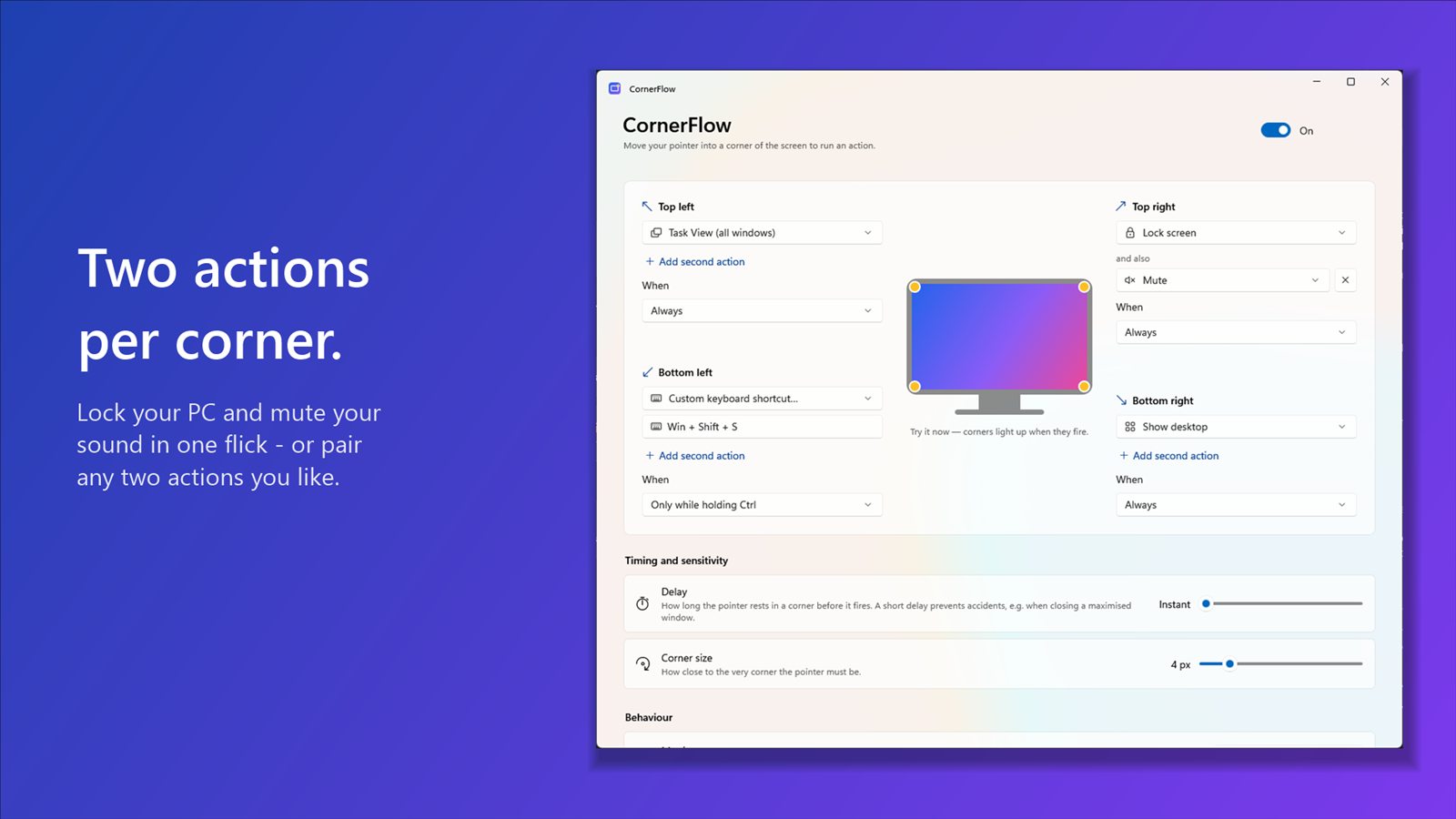
- Open it from the Start menu. The settings window shows a picture of your screen with all four corners.
- Pick an action for each corner from the list, for example Task View in the top left and Show desktop in the bottom right.
- Push the pointer into a corner to try it. The corner lights up in the settings window when it fires.
That's it. CornerFlow starts with Windows and sits quietly in the system tray, using next to no CPU.
Free 15-day trial, then a one-off £4.99. No subscription.
Mac hot corners and their Windows equivalents
If you're coming from a Mac, here's what each macOS hot corner action becomes on Windows:
| macOS hot corner | Windows equivalent in CornerFlow |
|---|---|
| Mission Control | Task View (all your windows, plus virtual desktops) |
| Desktop | Show desktop (go back to the corner to bring windows back) |
| Launchpad | Start menu |
| Notification Centre | Notification Centre |
| Lock Screen | Lock screen |
| Put Display to Sleep | Turn displays off |
| Start Screen Saver | Screen saver |
CornerFlow also does things macOS can't: two actions in one corner (such as Lock and Mute), any keyboard shortcut you record, media controls, and opening an app or website.
Good hot corner setups to try
The Mac-style setup
- Top left: Task View
- Top right: Notification Centre
- Bottom left: Start menu
- Bottom right: Show desktop
The "walk away" setup
Put Lock screen + Mute on one corner. One flick as you leave your desk locks the PC and silences it.
The focus setup
Use Show desktop in one corner to clear the clutter, and a recorded shortcut like Win + Shift + S (screenshot) or Win + V (clipboard history) in another.
Stopping corners from firing by accident
The most common worry with hot corners is setting one off by mistake, for example when you go to close a maximised window in the top-right corner. CornerFlow has a few ways to prevent that:
- Add a short delay, so the pointer has to rest in the corner for a moment.
- Require a key, so a corner only works while you hold Ctrl, Alt, Shift or Win.
- Ignore corners while a mouse button is held, so clicking or dragging into a corner never triggers it.
- Pause in full-screen apps is on by default, so games, videos and presentations aren't interrupted.
With more than one monitor, only the true outer corners are hot. Corners where two screens meet are ignored, so the pointer can move between monitors freely.
Quick answers
Can I get hot corners on Windows 10?
Yes. Windows 10 doesn't have them built in either, and CornerFlow works the same way on Windows 10 as on Windows 11.
Is there a free way to get hot corners?
Windows' built-in Show desktop strip, described above, is free, but it's a single click-only corner. CornerFlow has a free 15-day trial with every feature, then costs a one-off £4.99.
Do hot corners slow down my PC?
No. CornerFlow checks the pointer's position quickly only when it's near a corner, slows down elsewhere, and stops entirely when paused.
Ready to try it? See everything CornerFlow can do, or get it free for 15 days from the Microsoft Store.